
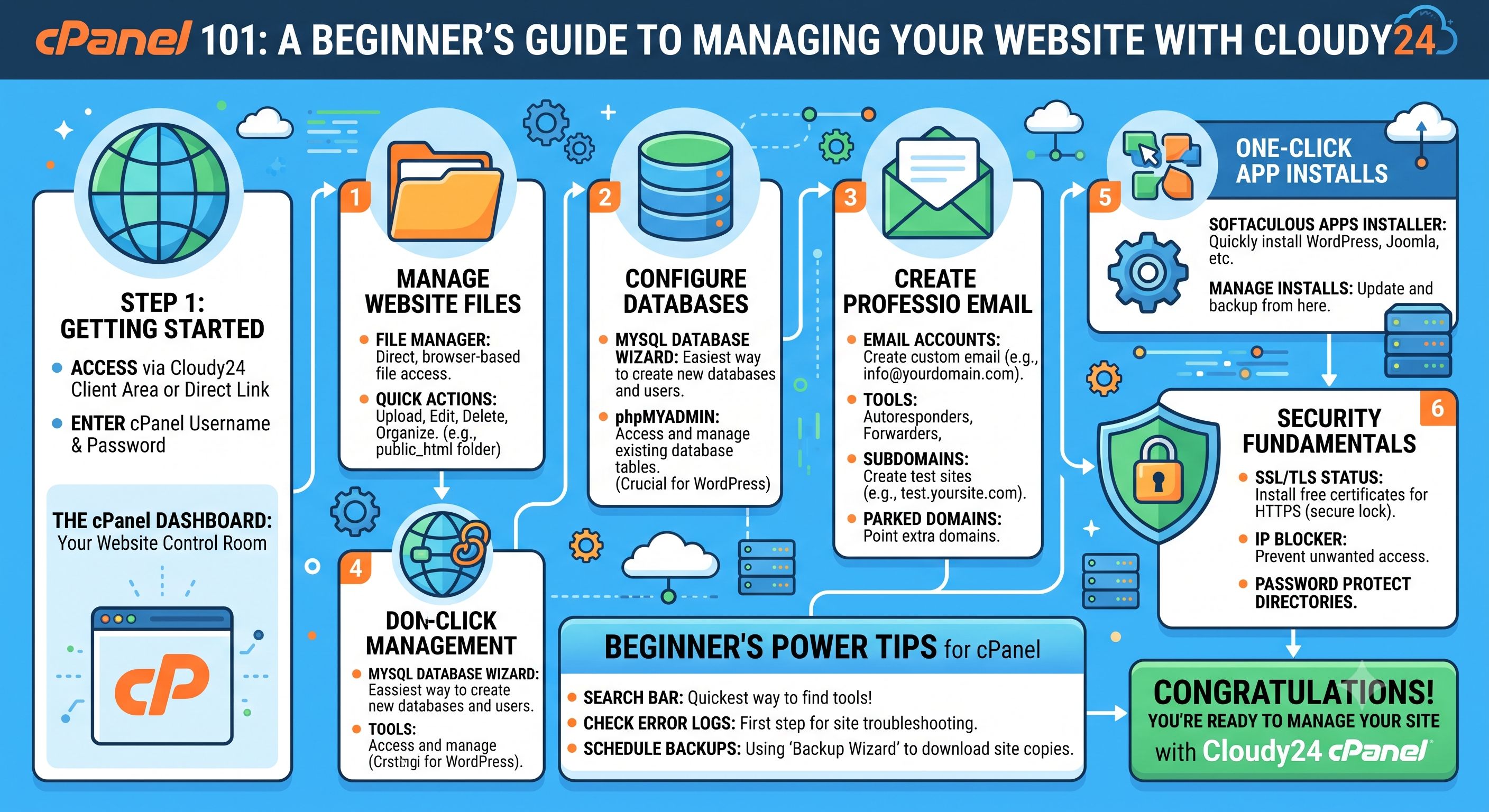
So you've just signed up for hosting and logged into cPanel for the first time — and you're staring at a screen full of icons with names like "Cron Jobs," "MX Entry," and "Softaculous." Don't worry. This guide breaks down exactly what you need to know to manage your website confidently, whether you're hosting with Cloudy24 or anywhere else.
What Is cPanel, Exactly?
cPanel is a web-based control panel that lets you manage every aspect of your hosting account through a simple dashboard instead of typing complicated server commands. Think of it as the "control room" for your website — it's where you manage files, emails, databases, domains, and security settings, all from your browser.
Cloudy24 includes cPanel access with its hosting plans, which means even non-technical business owners can manage their site without hiring a developer for every small change.
The cPanel Sections You'll Actually Use
1. File Manager
This is where your website's files live. Instead of using FTP software, you can upload, edit, and organize files directly from your browser. Useful for quick fixes like replacing an image or editing a text file without extra software.
2. Databases (MySQL)
If your site runs on WordPress or any other CMS, your content lives in a database. cPanel lets you create databases, manage users, and access phpMyAdmin for direct database management — though most beginners will never need to touch this directly since WordPress handles it automatically.
3. Email Accounts
One of the most underused cPanel features. You can create professional email addresses like contact@yourbusiness.com instead of using a free Gmail address — instantly boosting your credibility with customers. You can also set up autoresponders, forwarders, and spam filters here.
4. Domains
Add addon domains, subdomains, or park additional domain names — handy if you're running multiple small business sites or building out a blog subdomain.
5. Softaculous App Installer
This is the fastest way to install WordPress, and dozens of other apps, with a few clicks. No manual file uploads or database configuration required — perfect for beginners launching their first site.
6. Backups
Regular backups are non-negotiable. cPanel allows you to download full backups of your website or restore from existing ones, giving you peace of mind in case anything goes wrong.
7. Security (SSL/TLS)
Every modern website needs HTTPS. Most hosts, including Cloudy24, offer free SSL certificates that you can activate directly in cPanel — look for AutoSSL or a similar option to secure your site with the padlock icon visitors trust.
A Simple First-Time Checklist
- Set up your professional email under Email Accounts
- Install WordPress (or your CMS of choice) via Softaculous
- Enable free SSL so your site loads securely (https://)
- Schedule regular backups so you never lose your work
- Check your resource usage to understand your plan's limits
Why This Matters for Your Business
Every hour you spend fumbling through unfamiliar hosting tools is an hour not spent running your business. Understanding the basics of cPanel means you can make small updates yourself — swap a banner image, add an email account for a new hire, or install a plugin — without waiting on a developer or paying for simple tasks.
Cloudy24 Makes cPanel Even Easier
While cPanel itself is fairly standard across hosts, the experience around it makes a difference. Cloudy24 pairs cPanel access with:
- 24/7 human support if you get stuck on any setting
- NVMe SSD storage so file operations and site loading stay fast
- Free migration if you're moving from another host and want your existing cPanel setup transferred over
If you're new to hosting and want a control panel experience that doesn't feel intimidating, Cloudy24's hosting plans — starting from ₹89/month — come with the same cPanel tools described above, backed by a support team you can actually reach on WhatsApp when you have questions.
Explore Cloudy24's hosting plans at cloudy24.com and use code NEWUSER for 20% off your first order.
 Share on LinkedIn